How to use Kinlynk
Set up your family in about five minutes
Install the app, invite the people who matter, save the places that matter, and let Kinlynk handle the quiet work of keeping everyone in the loop.
01 — Getting started
Install Kinlynk and sign in
Kinlynk runs as a Progressive Web App. Install it once on each family member's phone so it opens like a native app and can send background alerts.
- 1Step 1
Install to the home screen
Open kinlynk.app in Safari (iPhone) or Chrome (Android). Tap Share, then Add to Home Screen. Launch the app from the icon — not the browser tab — so notifications and background location work.
- iPhone: Safari → Share → Add to Home Screen
- Android: Chrome → menu → Install app
Install prompt appears at the bottom of the app on supported devices.
Live screenshot on the way
- 2Step 2
Create an account
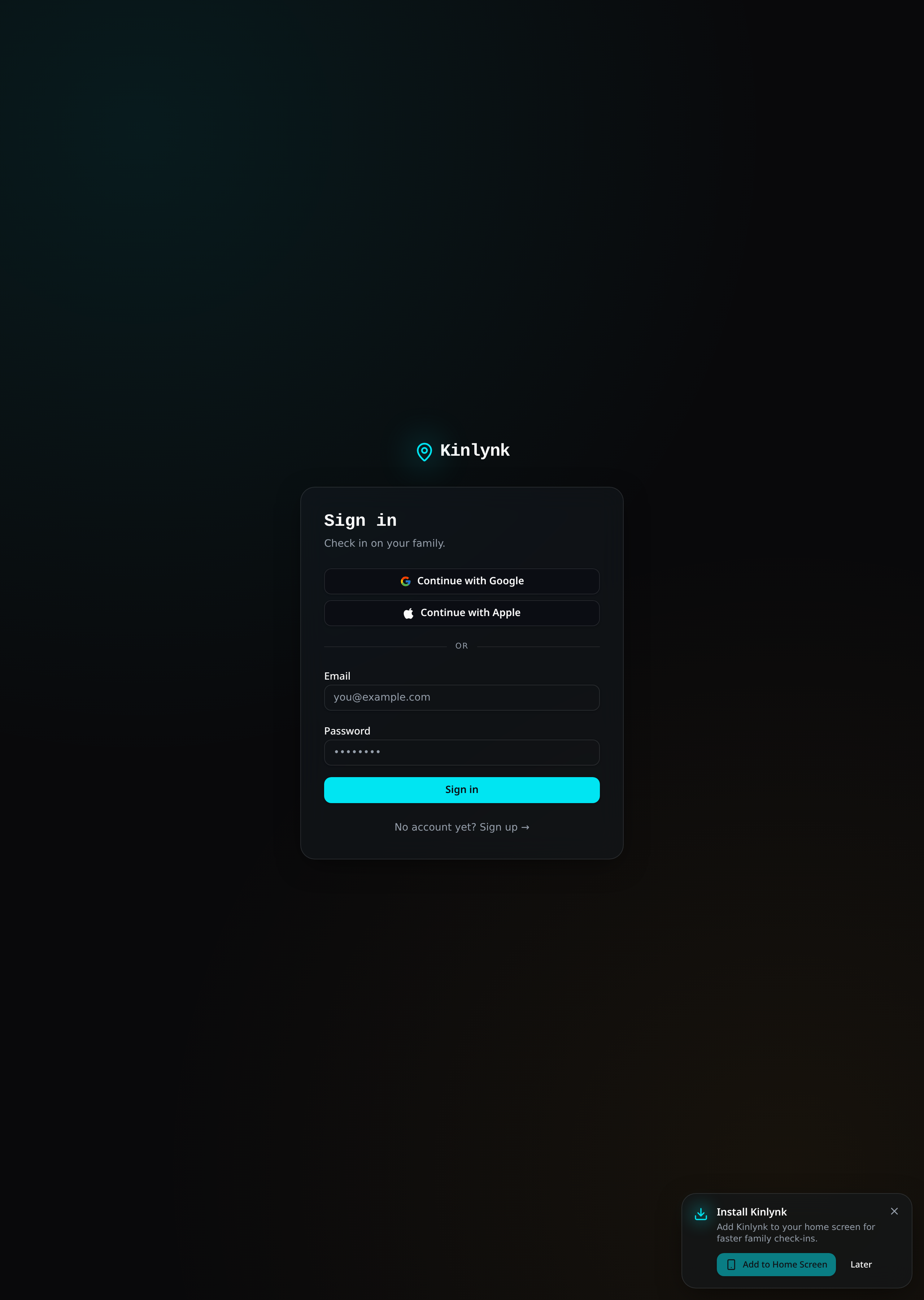
Sign in with Google, Apple, or email. Everyone in your family needs their own account — Kinlynk uses per-person accounts so location and roles stay accurate.
- 3Step 3
Allow location and notifications
The first time you open Kinlynk you'll be walked through granting location and notification permissions. Choose Always for location so arrival alerts fire when the app is in the background.
- Location: Always (required for background alerts)
- Notifications: Allow (used only for family and place alerts)
Setup gate — walks you through each permission in order.
Live screenshot on the way
02 — Your family
Create a tribe and invite people
A tribe is a private family group. Only members of the same tribe can see each other's location. You can be in more than one tribe (for example, immediate family and grandparents).
- 1Step 1
Create your tribe
From the dashboard, open the tribes sheet and tap New tribe. Give it a name like Home, Nguyen family, or School run.
Tribes sheet — manage every family group you belong to.
Live screenshot on the way
- 2Step 2
Invite family members
Tap Invite and share the link. Anyone who opens it and signs in joins your tribe. Invite links can be rotated at any time from the tribe settings.
Invite links are private, rotatable, and expire on rotate.
Live screenshot on the way
- 3Step 3
Manage roles
Tribe owners can remove members and rotate invite links. Everyone else can see the map, add places, and request refreshes. Roles are checked server-side, so members cannot change their own permissions.
Owner controls — rotate invite, remove member.
Live screenshot on the way
03 — Places and alerts
Save trusted places, get gentle arrivals
Places are the trusted spots where you want to know when someone arrives or leaves — home, school, work, training, grandparents. Alerts fire silently in the background.
- 1Step 1
Add a place
Open the Places panel, tap Add place, then long-press the map to drop a pin (or search an address). Give it a name and a radius — 100–200 m works well for most homes and schools.
Places panel — add, rename, resize, or delete a place.
Live screenshot on the way
- 2Step 2
Choose alerts
For each place, pick who you want alerts for and whether it fires on arrival, on leave, or both. You can silence a place at any time without deleting it.
Alert rules are per-place and per-person.
Live screenshot on the way
- 3Step 3
See the family map
The dashboard shows every member of your active tribe as a dot on the map, with last-updated time. Tap a member to centre on them.
Live family map — one dot per member per tribe.
Live screenshot on the way
04 — Requesting a refresh
Nudge a family member's location
iOS pauses background PWAs aggressively. If someone's dot looks stale, you can send a silent push that asks their phone to open Kinlynk briefly and refresh location.
- 1Step 1
Request a refresh
Tap a family member on the dashboard, then Request refresh. Only members of the same tribe can request each other, and only if the recipient has notifications enabled.
Request refresh button — appears on member cards.
Live screenshot on the way
- 2Step 2
They get a silent push
Their phone receives a low-priority push. If they have Kinlynk installed and notifications allowed, location refreshes within ~60 seconds and you see the updated dot.
Silent — no sound, no popup, just a fresher dot.
Live screenshot on the way
- 3Step 3
Privacy by default
Refresh requests are rate-limited and logged. Members can disable notifications at any time to opt out. Kinlynk never shares location outside your tribe.
You are always in control of your own visibility.
Live screenshot on the way
Ready to try it?
Create your first tribe in under a minute.